Creating a New User with Admin Tools
Project administrators can use Admin Tools to securely create new user accounts and manage access across Carta applications.
🔐 You must have administrator privileges for your specific organization to create new users within the same organization.
1. Open Admin Tools
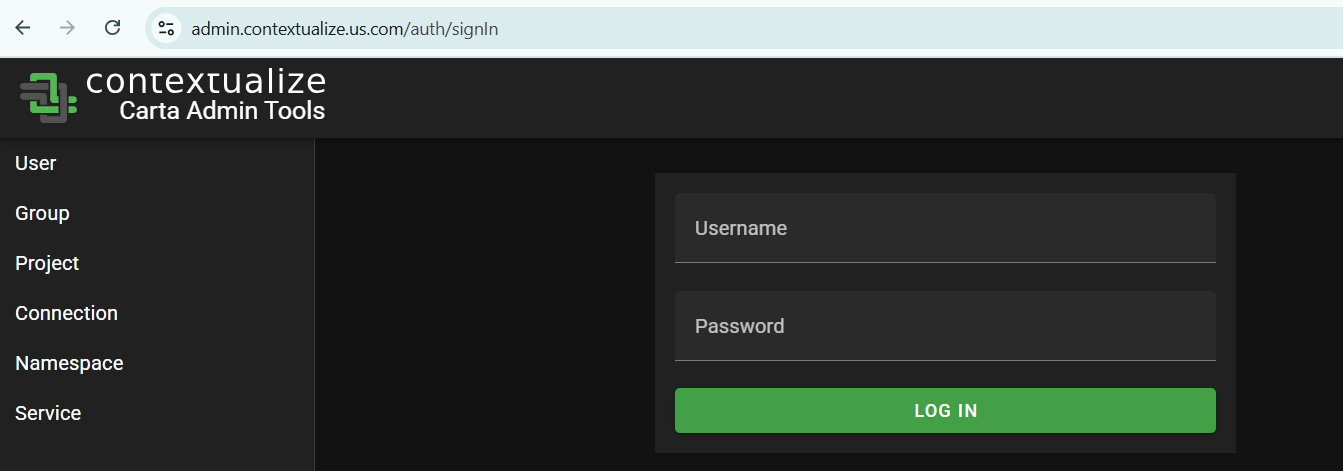
Navigate to admin.contextualize.us.com directly, or access Admin Tools through the Portal.
2. Log in
If you are not already signed in, you will be prompted with a user challenge. Enter your Carta username and password, then select LOG IN or login using your organization's SSO.
3. Select the 'hammer' icon
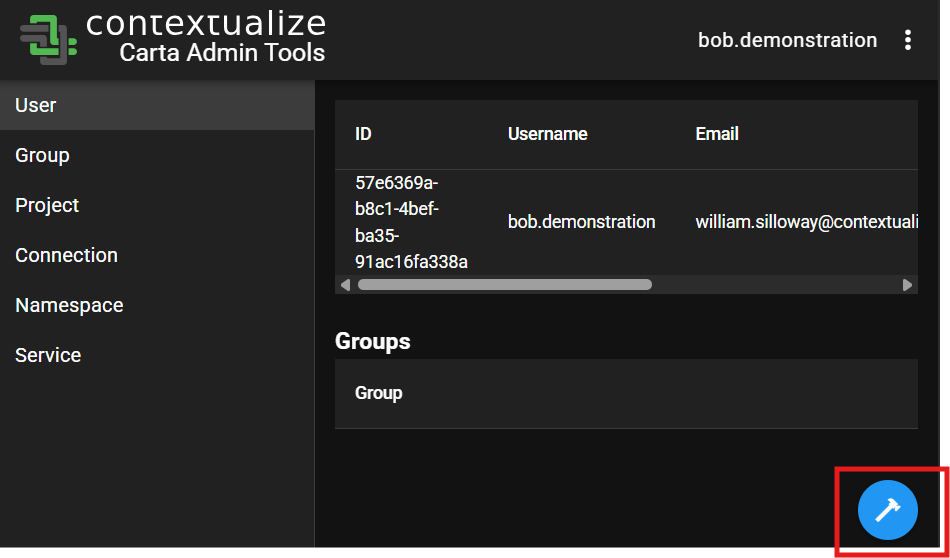
On the left-hand side of the screen, "User" should be selected. Click the blue hammer icon located in the bottom-right corner of the screen to open the administrator actions menu.
4. Select 'CREATE USER'
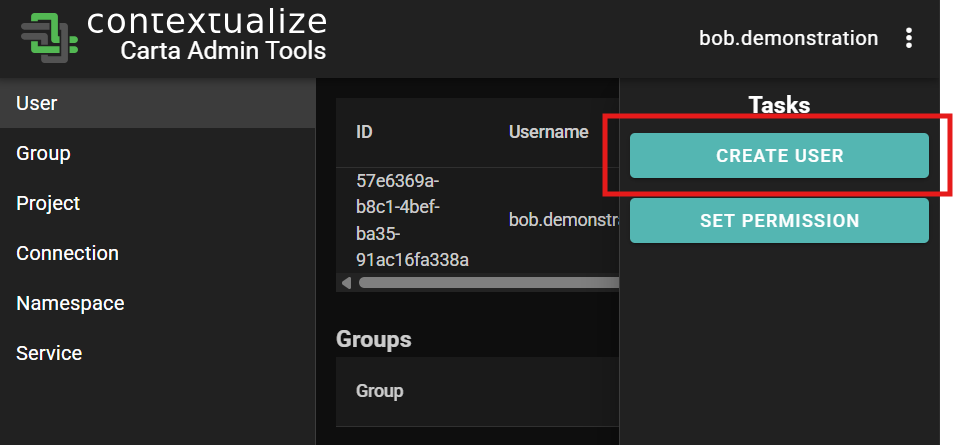
In the admin menu that appears, select CREATE USER.
5. Enter the user's information
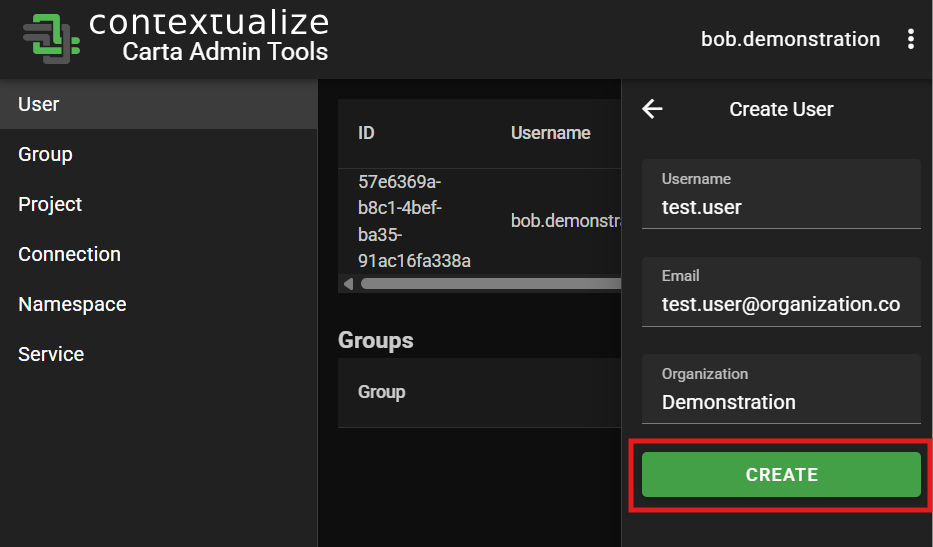
Fill out the following fields:
- Username: The desired Carta username
- Email: The user’s email address
- Organizations: The organization the user should belong to
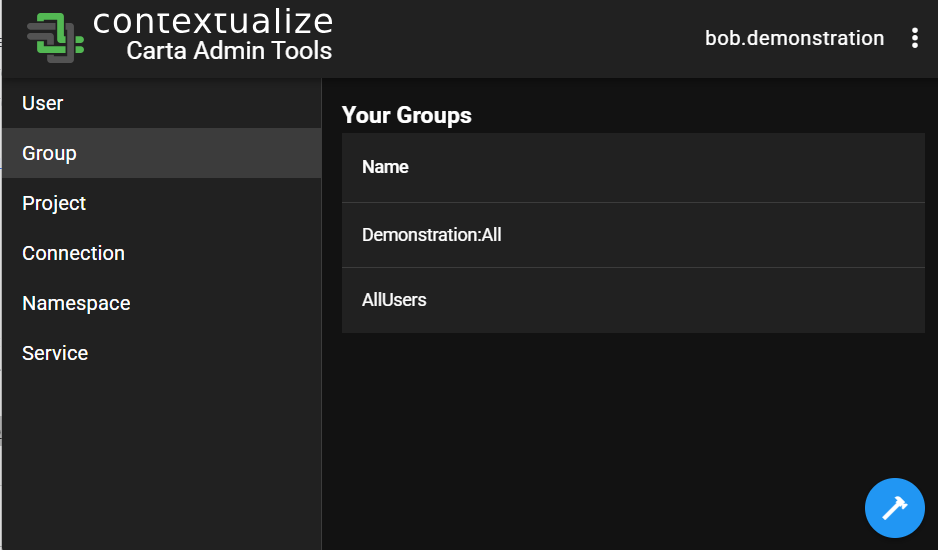
💡 Tip: To view the organizations you have access to, go to the GROUP tab on the left-hand sidebar.
The organization name is the part before the colon in the group name.
_Example: forDemonstration:All, the organization isDemonstrationin the screenshot below.
6. Create the user
Click the CREATE button to finish creating the user.
The user will receive a welcome email with instructions to activate their account.