Link Properties for Multi-Part Processes
Many users run into confusion when a single process produces multiple parts, samples, or datasets. For example:
- A 3D print build plate with several unique parts printed at once.
- An arc melting process with multiple chambers producing different ingots.
- A single part that gets machined into several coupons or smaller parts.
Without a clear structure, it’s easy to lose the link between the main process and each individual part.
The Solution: Use Parent-Child Forms
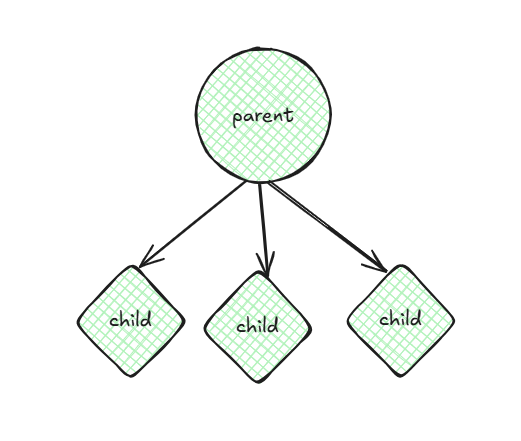
The best practice is to create at least two forms in Form Builder:
- A Parent Form for the overall process or batch (e.g., Build Form, Melt Run Form, Machining Process Form).
- A Child Form for each part, chamber, or sample produced under the conditions of that process.
Think of it like this:
Each Child Form describes a consequence of the event described by the Parent Form. Conversely, the Parent Form describes a cause or predicate that impacts the event described by the Child Form.
For example:
- The grain size of a part (Optical Micrograph, Child Form) is a consequence of an earlier heat treatment (Parent Form), and conversely
- A heat treatment (Parent Form) causes the grain size (Optical Micrograph, Child Form) to change.
Forms track with time. If Step A necessarily precedes Step B, the Step A is the Parent and Step B, the Child. If the order doesn't matter, then Steps A and B should have a common predecessor; Steps A and B are siblings. When in doubt, sort the forms in the order in which the actions occur.
These forms are connected using Primary Keys and Parent Keys:
- The Parent Form defines a unique Primary Key (like
Build ID). - The Child Form includes a Parent Key that references the Parent Form’s Primary Key.
This ensures your data stays organized and each part is always linked to its process.
Example 1: 3D Print Build Plate
How to structure it:
-
Build Form (Parent)
- Primary Key:
MyProject Build1234 - Fields: Printer name, printer settings such as atmosphere, date, operator
- Primary Key:
-
Part Form (Child)
- Primary Key:
MyProject Artifact2 - Parent Key:
MyProject Build1234 - Fields: Part name, part-specific information such as a laser power, measurements
- Primary Key:
Workflow in Collections:
-
Submit the Build Form once per build plate.
-
Submit one Part Form for each part printed on that build.
> Hint After submitting the Build Form fill out the first Part Form, including the reference back to the Build Form, in Collection's table view. Then, by using the duplicate button to create a copy of that first row, you only need to change fields that differ, saving you time and effort.
Example 2: Arc Melting with Multiple Chambers
How to structure it:
-
Melt Run Form (Parent)
- Primary Key:
Melt Run ID - Fields: Furnace, operator
- Primary Key:
-
Chamber Form (Child)
- Primary Key:
Chamber ID - Parent Key:
Parent Melt Run ID(referencesMelt Run ID) - Fields: Chamber number, chamber settings
- Primary Key:
Workflow in Collections:
-
Submit the Melt Run Form once per run.
-
Submit one Chamber Form for each chamber product.
Why This Matters
Using Parent and Child forms:
- Keeps data organized: No mixing multiple parts in one giant form.
- Preserves traceability: Each part’s data is directly linked to the process that produced it.
- Enables automation: Machine-readable links make it easy to build reports or launch pipelines.
- Builds a knowledge graph: Relationships between forms create a connected, reusable data structure.