Logging in to Carta with Your Organization’s SSO
We can integrate seamlessly with your organization’s existing Single Sign-On (SSO) so you don’t have to remember yet another username and password. Once the integration is set up between your organization and Carta, follow the steps below to log in and access your applications.
🔐 Note: You must first log in with SSO at least once before your system administrator can assign permissions for your groups.
1. Open Carta Portal
Navigate to portal.contextualize.us.com in your browser.
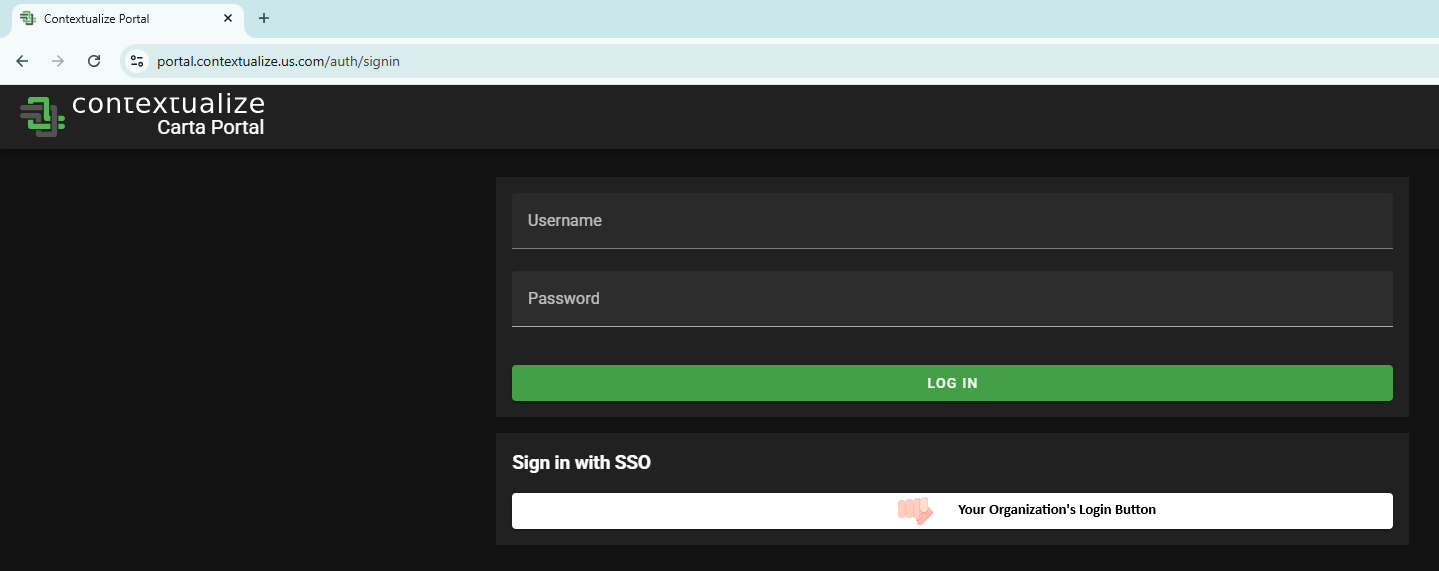
2. Select "Sign in with SSO"
On the Portal login page, click the Sign in with SSO button.
This button will appear automatically if you are on your organization’s network or VPN.
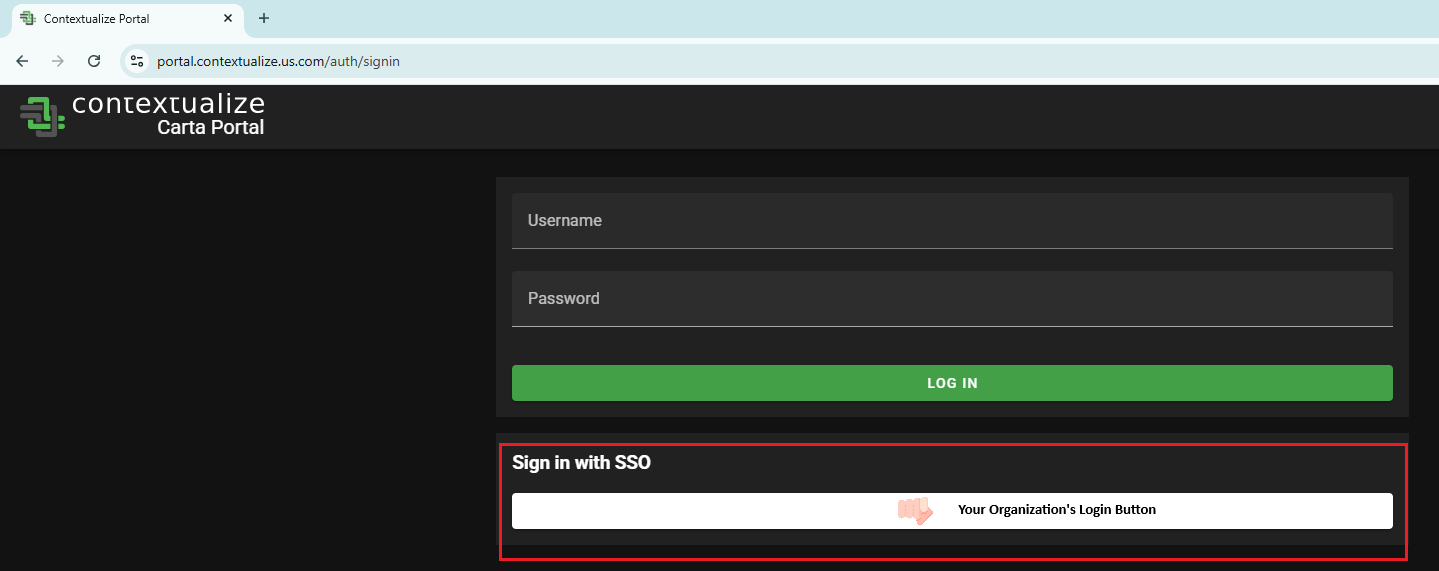
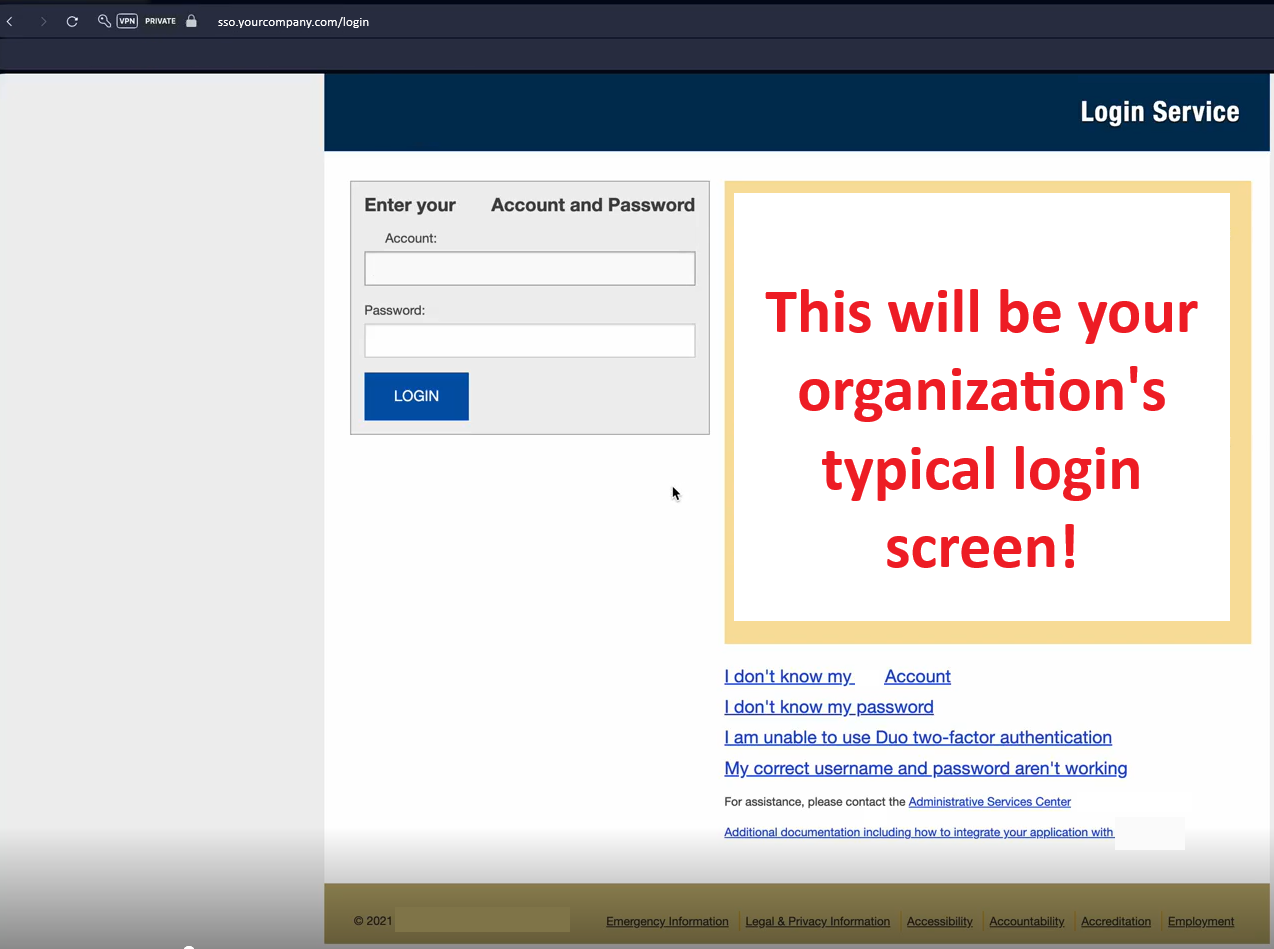
3. Authenticate with Your Organization
You will be redirected to your organization’s login screen.
Enter your usual credentials (username, password, MFA, etc.) and complete any required steps as directed.
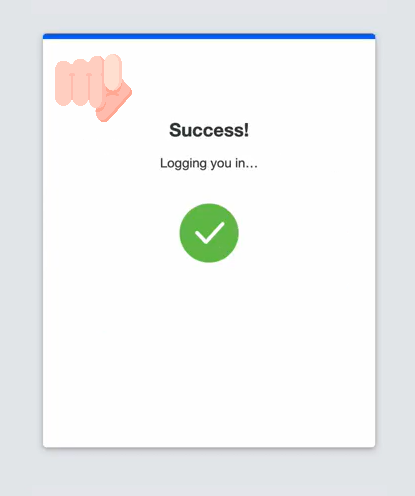
4. Redirect to Portal Home
After a successful login, you’ll be automatically redirected back to the Portal Home.
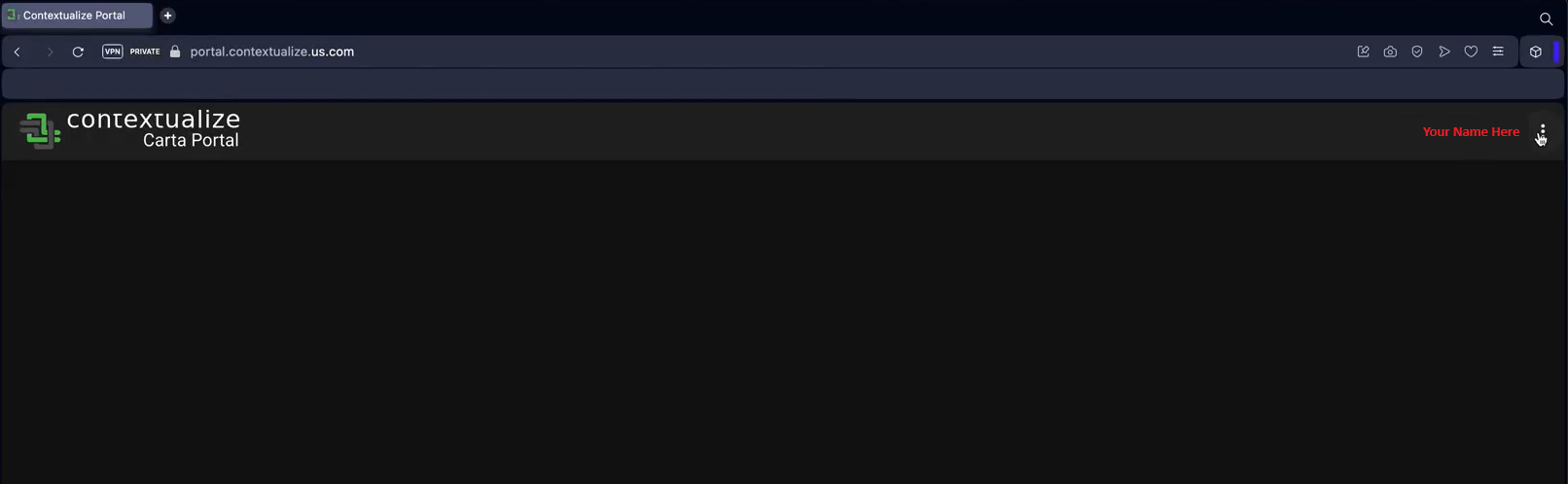
5. Get Permissions
When you first log in with SSO, you might not see any applications yet.
This is normal! Your system administrator must assign you to the appropriate groups after your initial login. See: Grant Permissions Using Admin Tools
💡 Tip: Reach out to your system admin or project lead to request access to the applications or projects you need.
Once your permissions are assigned, you can return to portal.contextualize.us.com anytime and sign in with SSO — no separate Carta username or password required.