DEXR Outpost — GUI User Guide
DEXR Outpost is a five-tab application built with the Toga cross-platform GUI framework. Each tab covers one function: uploading a payload, downloading a payload, managing your configuration, rotating your keys, and reviewing your transfer history.
Launching the App
- Windows: Start Menu → DEXR Outpost
- macOS: Finder →
~/Applications→ DEXR Outpost.app, or Spotlight search for "DEXR Outpost" - Linux (from wheel):
dexr-outpost-guiin a terminal with a display server
On first launch, macOS shows a one-time Gatekeeper confirmation dialog. Click Open to proceed (see docs/install.md).
If the app opens to a tab with an "Add your writer/reader key" prompt, open the Config tab first and paste in your keys.
Upload
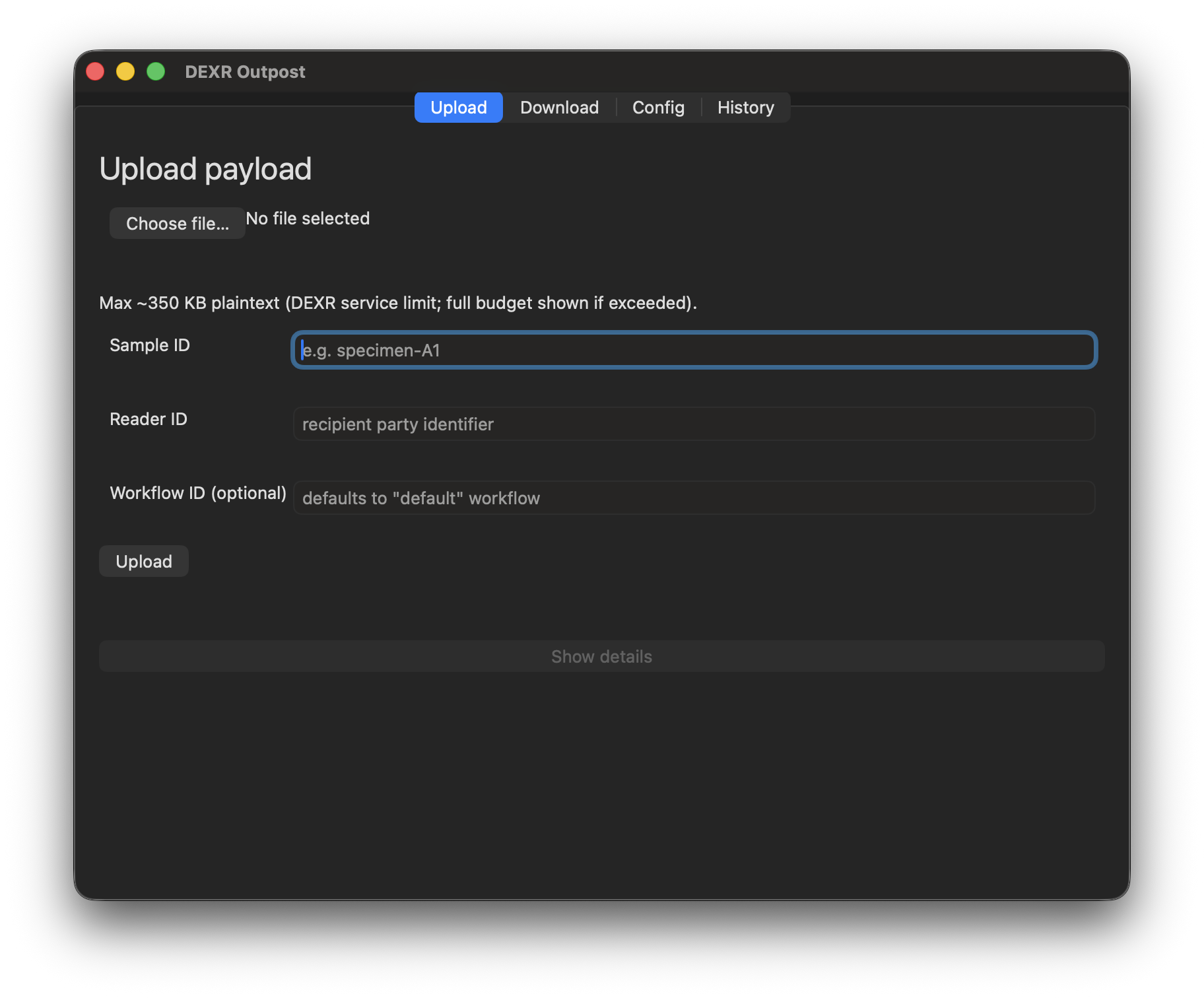
The Upload tab sends a file to a DEXR recipient. It requires
DEXR_WRITER_KEY to be configured; if not present the tab shows an empty state
with a button to open Config.
Fields
| Field | Required | Description |
|---|---|---|
| Choose file… | Yes | Opens a file picker; last-used directory is remembered |
| Sample ID | Yes | Identifies the specimen or dataset being transferred |
| Reader ID | Yes | The party identifier of the intended recipient |
| Stage ID | Only if DEXR_STAGE_ID is not configured |
Pipeline stage for the payload |
| Workflow ID | No | Defaults to "default" if left blank |
Payload size limit: The DEXR service accepts approximately 299 KB of
plaintext (after encryption and base64 overhead against the 400 KB wire
ceiling). The field area displays a reminder: "Max ~350 KB plaintext." If the
file is too large, a PayloadTooLargeError appears near the file picker with
the exact budget breakdown before any upload is attempted.
Upload flow
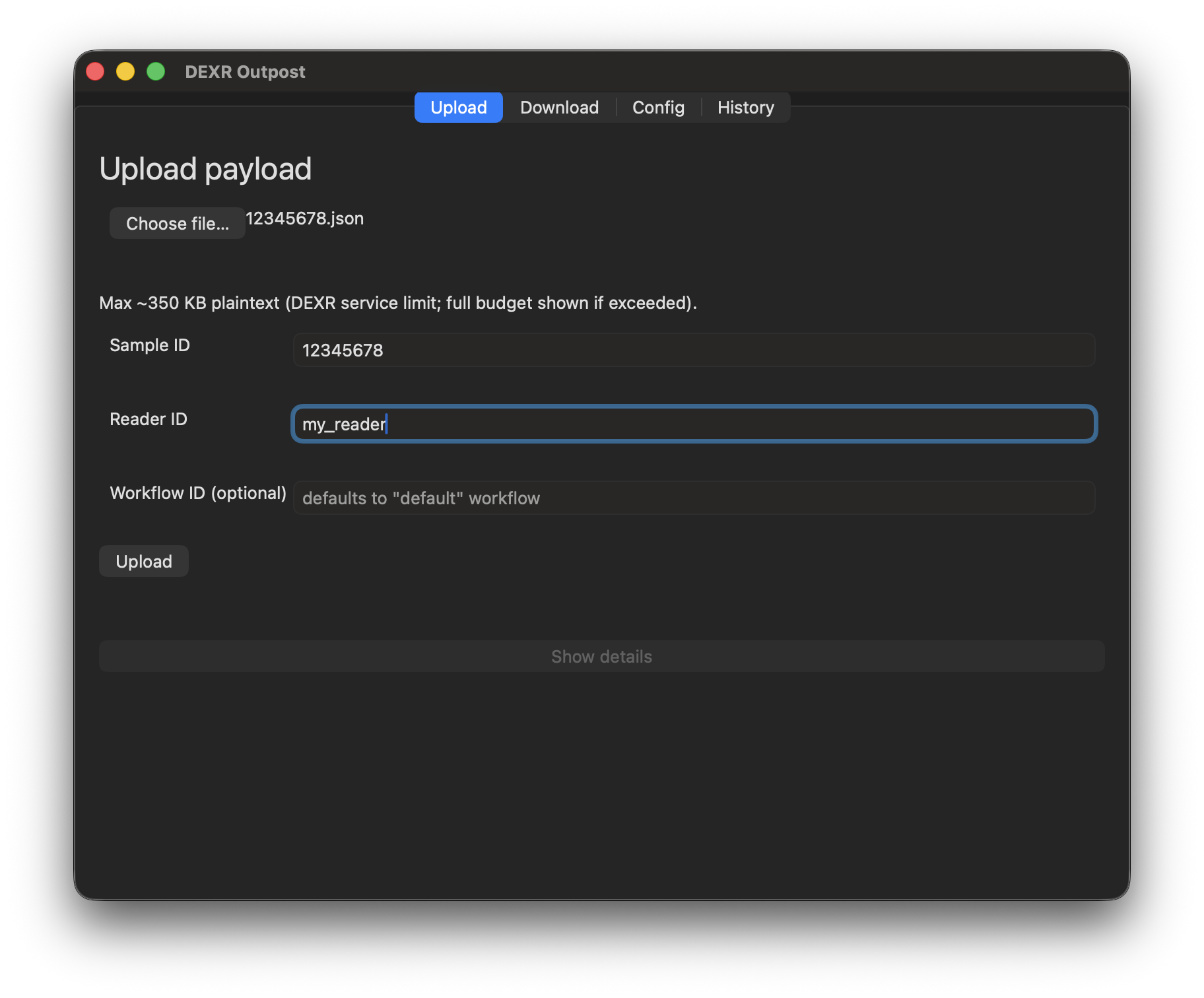
- Click Choose file… and pick a file.
- Fill in Sample ID and Reader ID (and Stage ID if shown).
- Click Upload.
- The spinner ("Uploading…") indicates the transfer is in progress.
- On success: a green "✓ Upload complete" indicator appears.
- On failure: a red error summary appears. Click Show details to expand the full error. Click Retry upload to try again.
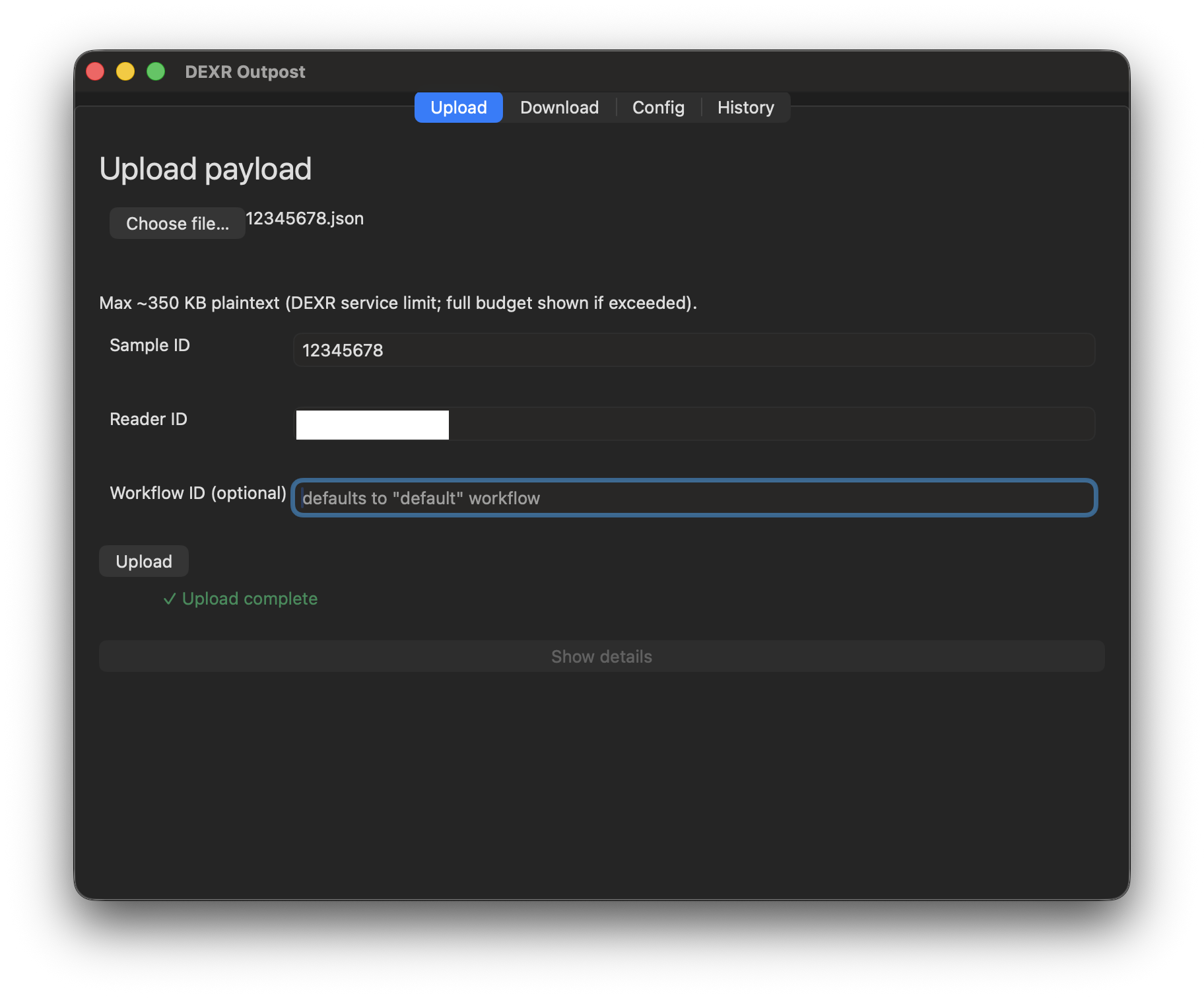
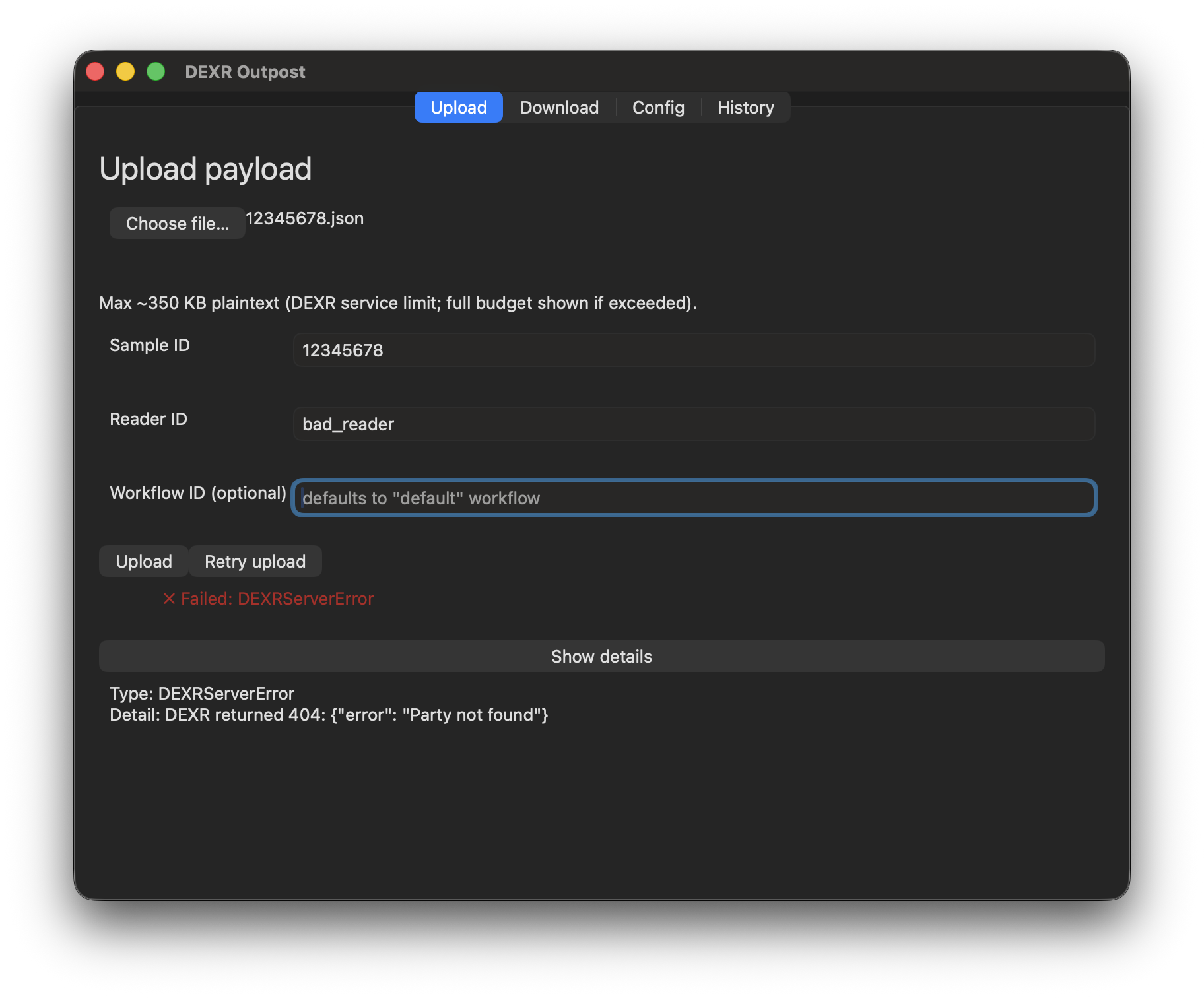
Successful uploads are logged to transfer history (visible on the History tab).
Download
The Download tab retrieves a payload by sample ID. It requires both
DEXR_READER_KEY and DEXR_PRIVATE_KEY; if either is missing the tab shows
an empty state.
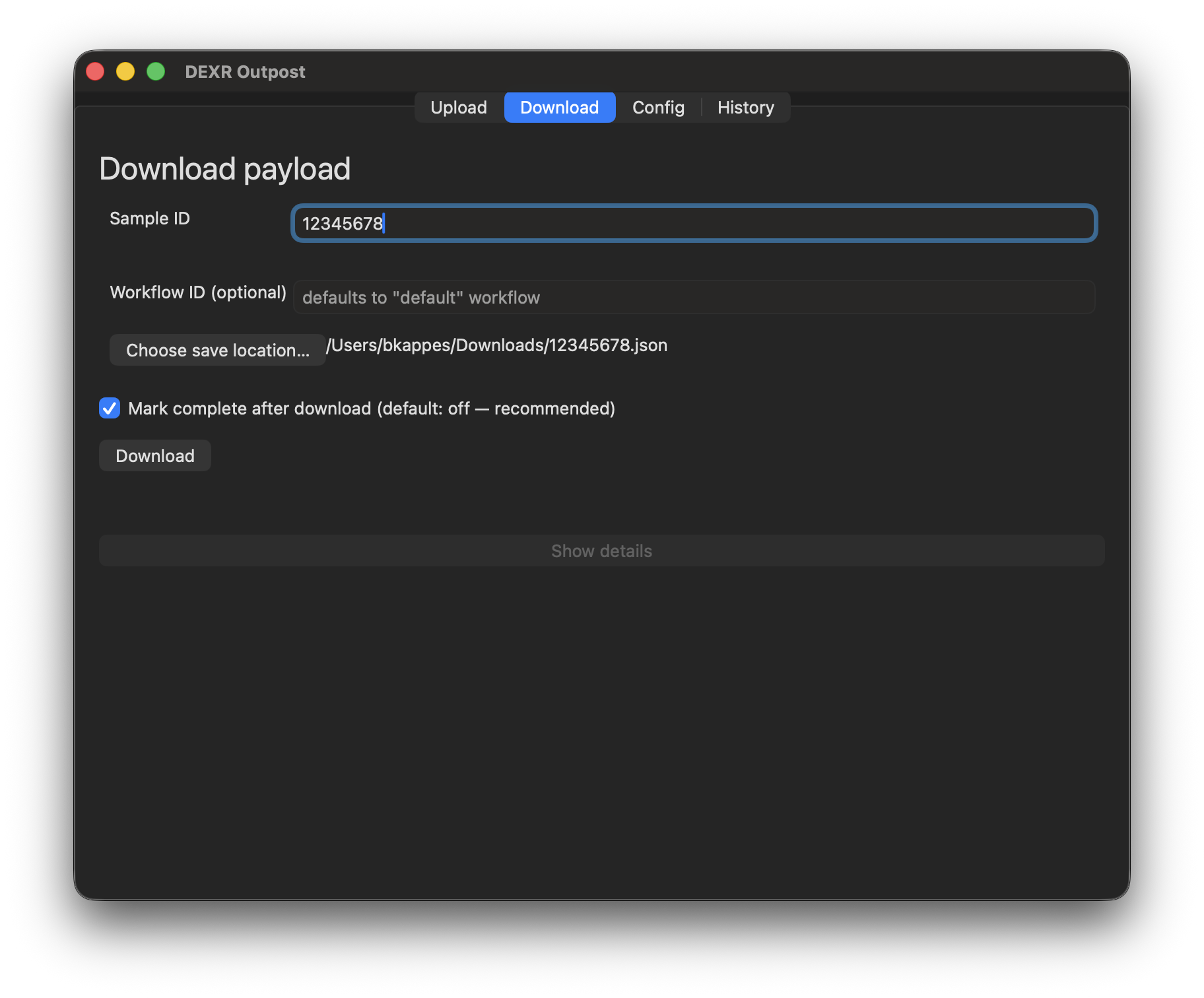
Fields
| Field | Required | Description |
|---|---|---|
| Sample ID | Yes | The sample to download |
| Stage ID | Only if DEXR_STAGE_ID is not configured |
|
| Choose save location… | Yes | Save-As dialog; defaults to last download directory |
| Mark complete after download | No | Switch (default: off). When on, tells the DEXR service the payload was received. Defaults off — you can download repeatedly without marking complete. |
Download flow
- Enter the Sample ID.
- Click Choose save location… and pick where to save the file.
- (Optional) Enable Mark complete after download if you want the service to record the payload as received.
- Click Download.
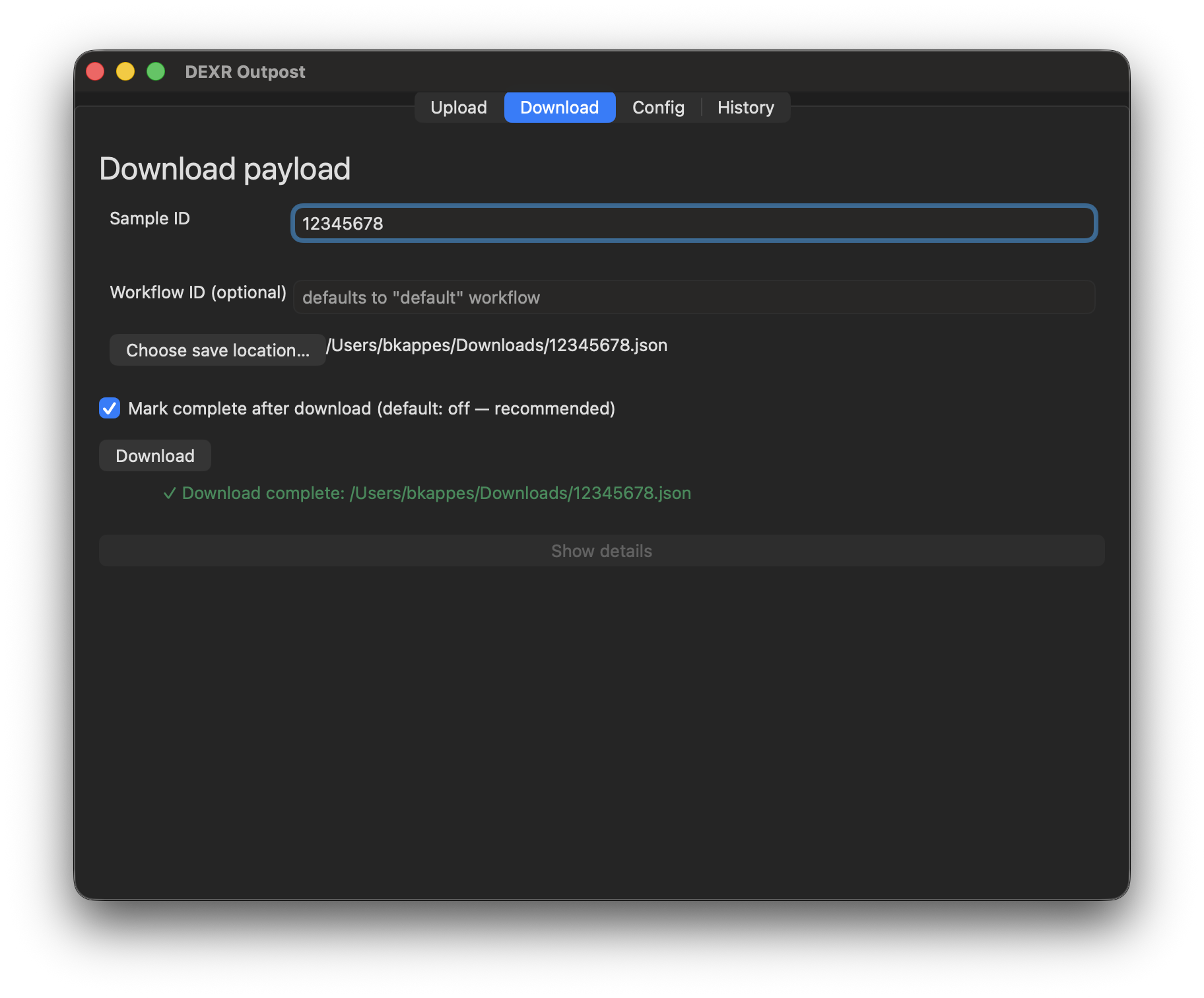
- On success: a green indicator confirms the file was saved. If mark-complete was enabled but the network call to mark-complete failed, a yellow "partial success" indicator appears — the file is on disk, but the service was not notified.
- On failure: a red error summary with Show details and Retry.
Config
The Config tab edits the DEXR environment values stored in your config file. It is the canonical place to set or update your keys.
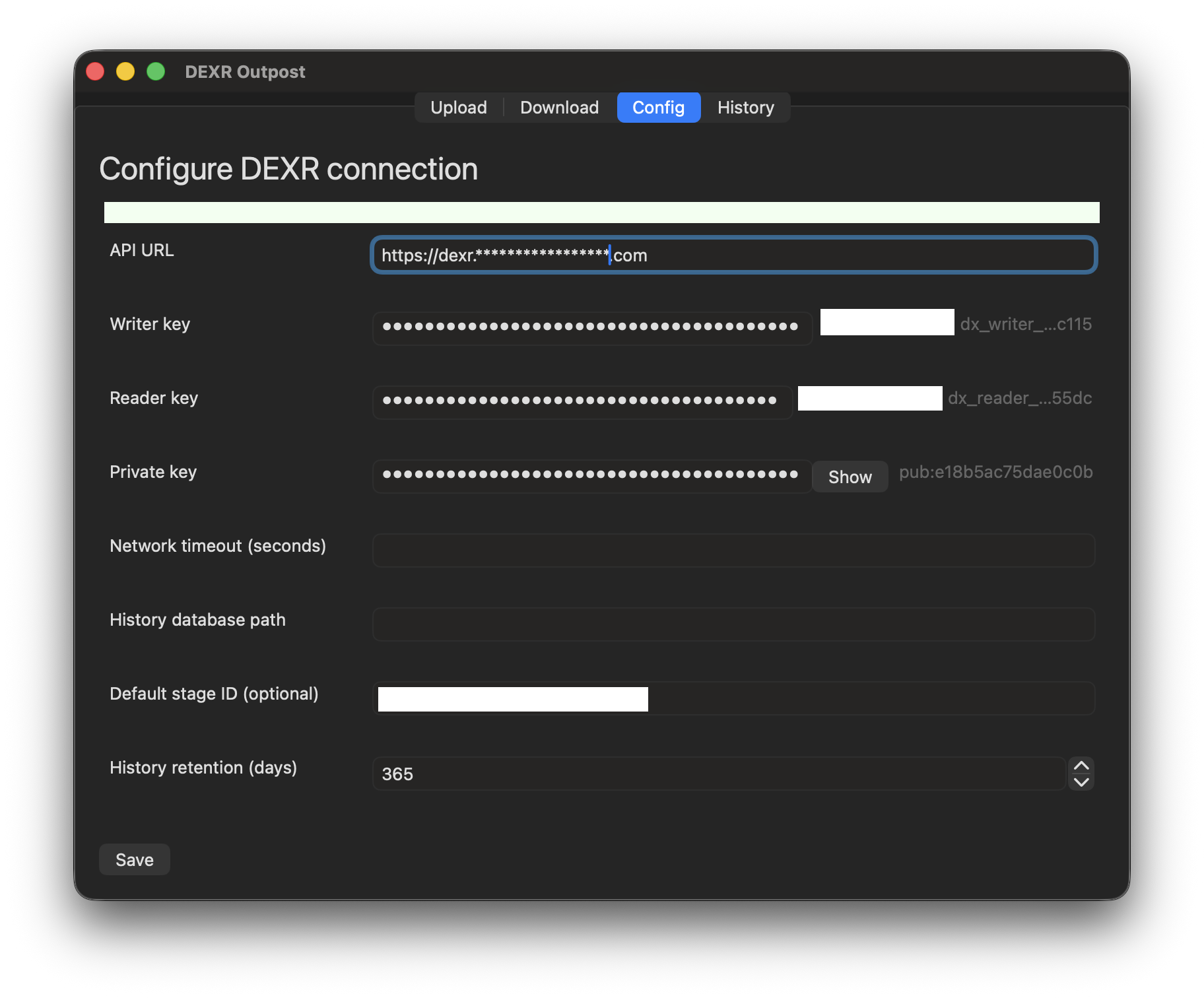
Fields
| Field | Notes |
|---|---|
| DEXR_PRIVATE_KEY | Masked by default. Click Show to reveal and verify the value; click Hide to re-mask. The value is never written to logs or the clipboard. |
| DEXR_WRITER_KEY | Your writer-role party key |
| DEXR_READER_KEY | Your reader-role party key |
| DEXR_SERVER | API base URL (defaults to the public DEXR endpoint) |
| DEXR_STAGE_ID | Optional default stage; if set, the Upload/Download forms do not prompt for it |
| Other DEXR_* fields | Additional service parameters as documented by your DEXR administrator |
Cloud-sync warning
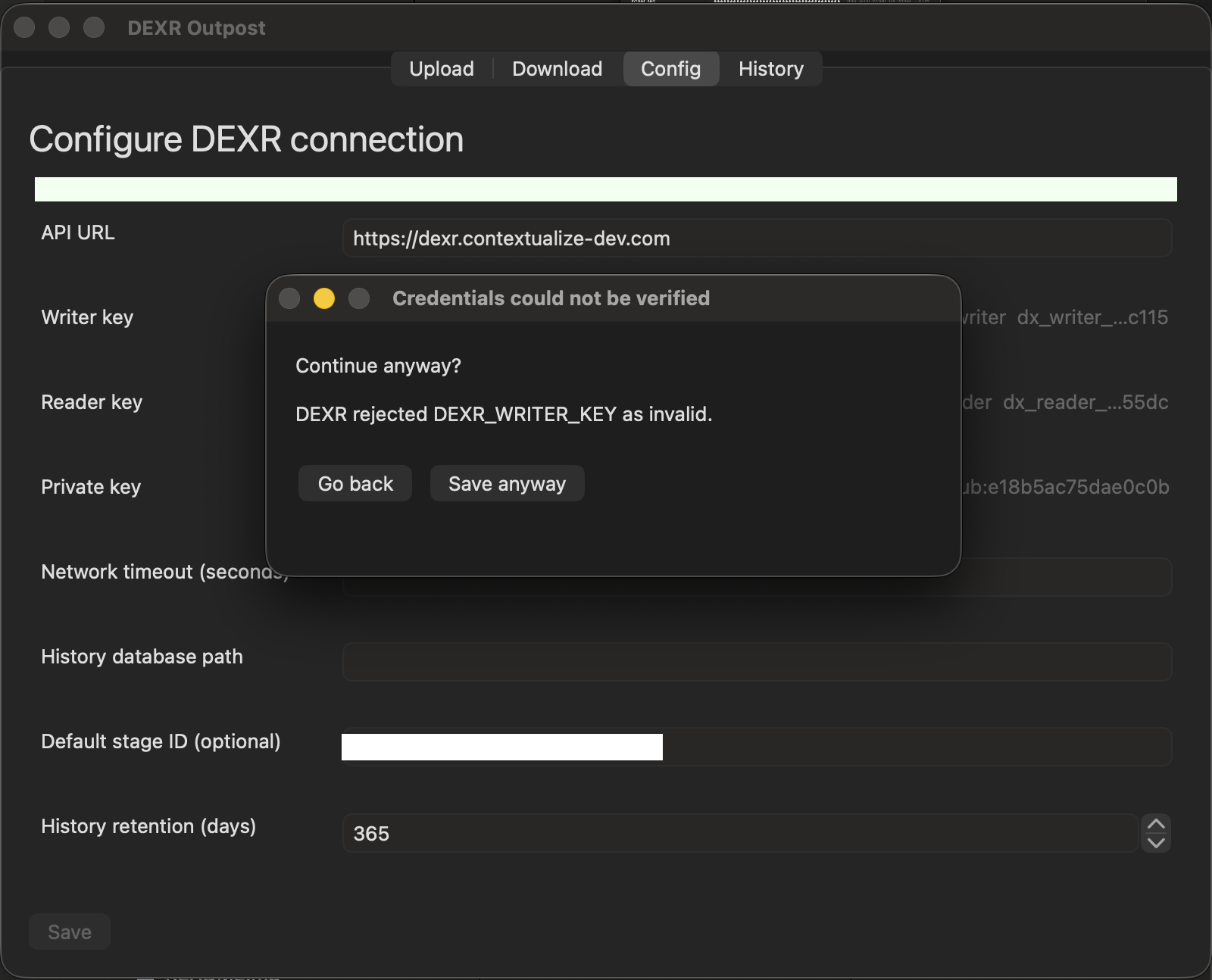
If your config file is detected inside a cloud-sync folder (iCloud Drive, OneDrive, Dropbox, Google Drive), a persistent yellow warning banner appears at the top of the Config tab:
"Your config file is inside a cloud-sync folder. Consider moving it out of that folder. See docs/security.md for backup-exclusion guidance."
This is a security warning: your private key would otherwise be uploaded to the cloud provider in plaintext. The banner cannot be dismissed — move the config file to a non-synced location.
Saving
The Save button is disabled until at least one field has changed from the baseline. On save:
- Local format validation runs (key format checks, URL validity).
- If a key field changed, a network verification round-trip confirms the key is accepted by the DEXR service.
- If verification fails, a dialog lets you Save anyway (with a warning banner) or Cancel to keep editing.
- On success, a green "Config saved" banner appears at the top of the view. The active client is refreshed immediately — you do not need to restart.
Changes to the config take effect the moment Save succeeds. Closing the tab with unsaved changes prompts a three-button dialog: Save, Discard, or Cancel.
Key Rotation
The Key Rotation tab lets you update your DEXR keys atomically. Only keys that pass server-side verification are persisted; a failed candidate leaves the existing config unchanged.
How it works
- Paste your new key candidates into the provided fields.
- Click Verify and save.
- The app verifies each candidate key against the DEXR service.
- If all candidates pass: the config file is updated atomically (same-dir
tempfile +
os.replace). - If any candidate fails: the config file is not modified. An error message indicates which key(s) failed.
This all-or-nothing write guarantees you are never left with a partially rotated config.
History
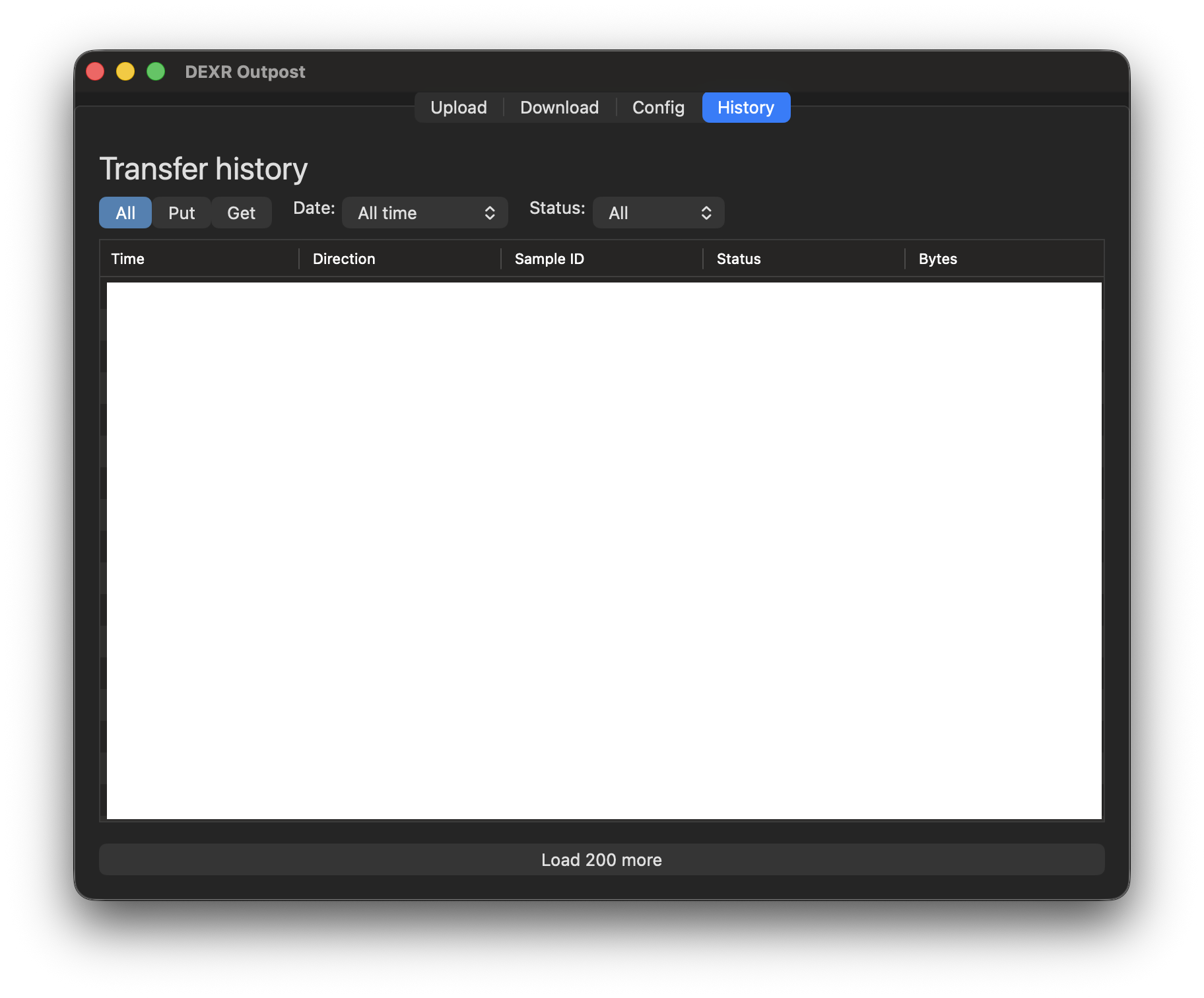
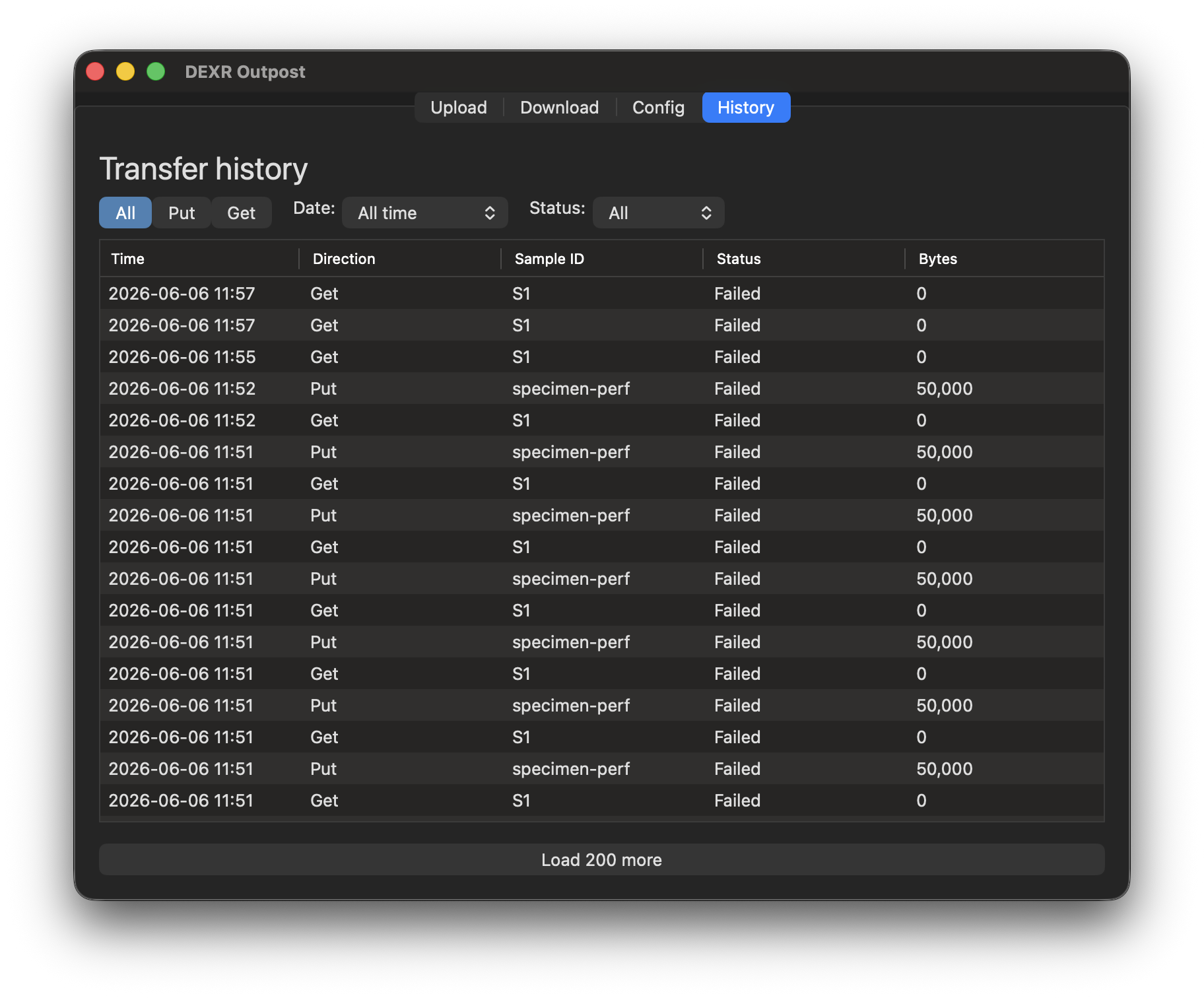
The History tab shows a table of your recent DEXR transfers. Both CLI-initiated and GUI-initiated transfers appear here — the CLI and GUI share the same SQLite history store.
Columns
| Column | Description |
|---|---|
| Time | UTC timestamp when the transfer started |
| Direction | Put (upload) or Get (download) |
| Sample ID | The sample identifier |
| Status | success, failed, or partial |
| Bytes | Plaintext byte count |
Filters
Three composing filters narrow the view:
- Direction — All / Put / Get (segmented control)
- Date range — Last 7 days / Last 30 days / All time / Custom… (Custom shows inline From/To date fields)
- Status — All / Success / Failed
All three filters apply simultaneously. Changing any filter re-fetches from the database immediately.
Pagination
The table loads up to 200 rows at a time. A "Load 200 more" button appears at the bottom if more rows exist.
Row detail
Click a row to expand inline detail fields (reader ID, stage ID, workflow ID, error class, error message) that do not fit in the table columns.
Empty states
- No transfers match the current filters: a message indicates the filters returned nothing; adjust them to broaden the view.
- No transfers ever recorded: the table shows a "No transfer history yet" message.